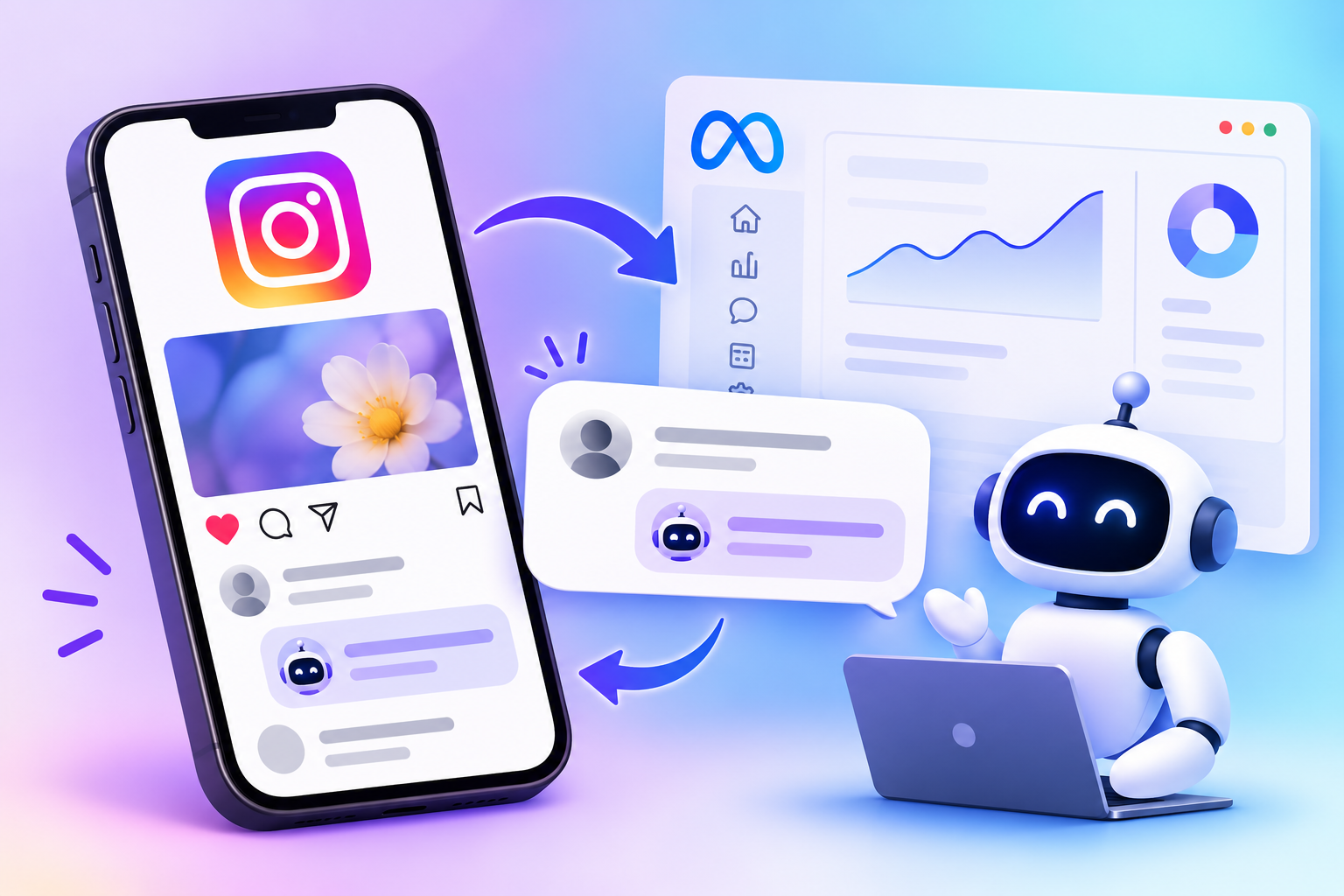
Instagram can be a great way to engage with customers, answer questions and gain leads. However, responding to every message and comment can be time consuming. Using Instagram Automation can help businesses respond to common interactions automatically.
Using Meta Business Suite helps you respond to messages and comments on Instagram by providing tools to manage your automation responses in one place. You can use it to greet customers, answer popular questions and provide them with useful information. This article will show you how to link your account, set up your automation and understand its pros and cons.
What Does Instagram Automation Mean?
Using rules and tools to respond to customer interactions.
For example, if a customer comments PRICE on a promotional post, they may receive a DM with product information.
You can use Instagram Auto reply features to respond to messages, provide basic information and encourage customers to move to the next stage.
Some common examples are:
- Welcome messages.
- Popular questions.
- DMs after certain comments.
- Website links and product information.
- Informing customers when you are unavailable.
Why Link Your Instagram to Meta Business Suite?
Meta Business Suite allows you to manage your Facebook and Instagram activities in one place.
1. Centralise Your Messages:
Using the shared inbox within Meta Business Suite, you can easily see and respond to appropriate messages from Facebook and Instagram.
2. Save Time:
3. Give Instant Information:
Customers can receive an initial response even if you are unable to reply.
Help with Campaign Interaction:
Using comment automation can help prompt the right people to move to a DM.
Before Linking Your Instagram
Ensure you have:
- An Instagram Professional account (Business or Creator).
- A Facebook Page linked to your business.
- Access to the right Meta business portfolio.
- Permissions to manage the Page and Instagram.
- Message permissions enabled for the tools you are using.
If there are no messages appearing from Instagram in Meta Business Suite, double check that you have message permissions enabled and the tools linked.
How to Link Your Instagram to Meta Business Suite
Step 1: Visit Meta Business Suite
Go to business.facebook.com and log in with the Facebook account used to manage your business Page.
Step 2: Choose Your Business
Select the right business portfolio and Facebook Page.
Step 3: Access Settings
Look for the Accounts or Business Assets section. These may be named differently.
Step 4: Link Your Instagram
Look for Instagram accounts. Select the option to link an account, log in and follow the prompts to authorise.
Step 5: Enable Message Permissions
Check your message permissions for Instagram or the tools you have linked. Ensure you have the option to enable messages.
Step 6: Confirm Your Connection
Go back into Meta Business Suite. Go to your Inbox and ensure your Instagram tab appears along with any conversations.
How to Set Up Meta Business Suite Automation
Once you have linked your account, go to your Inbox. Look for Automations and click Create Automation. Take a look at the templates available.
Select the right channel, enter your message and set up your automation (either by trigger or schedule). Save your changes.
This is the basic setup for Meta Business Suite automation. Templates and menu names may vary. Try testing any rules on a different account.
Types of Automation
1. Instant Replies
An Instagram Auto reply will send a welcome message.
Example:
“Hi! Thank you for contacting us. We have received your message and will get back to you as soon as we can.”
This will send an auto reply to any new enquiry. However, if the messages have not been looked at by the team, do not mention this.
2. Direct Message Auto Reply
Some accounts have an option to respond to certain words or phrases within direct messages. For example, if someone types PRICE, they could receive a product page or instructions on how to contact you.
When setting up your Automated DM Instagram, think about what question you want to answer for your customer. Keep it relevant. Automated DM Instagram can also be searched for by people looking for tools that send automated direct messages.
3. Comment to Message
Depending on your account and the tools you have available, you can use comment to message to send a DM after someone has commented on a chosen post. This will be triggered by certain words.
For example, if they comment DETAILS, they could receive a DM with extra information. This can help with comment automation by encouraging them to continue the conversation in a DM.
Select the right post, set your trigger, write your DM and test. When setting up an Automated DM Instagram, ensure you are giving them useful information.
4. Away Messages
This will let your customers know when you are not available. If you have scheduling enabled, set the times you are available and let them know when they can expect a reply.
Cons of Automated Replies
Whilst it can help save time, there are some cons.
1. Generic Responses
It can come across as generic because everyone receives the same message.
2. Wrong Triggers
Someone could comment with a word that does not fit with your automation.
3. Unwanted DMs
Some people will not want to receive a DM after leaving a simple comment.
4. Not Personal
As responses are pre-written, you may not be able to answer detailed questions.
5. Lost Interest
If customers ask specific questions and receive a generic reply, they may lose interest.
6. Technical Issues
There may be issues with permissions, settings or technical problems preventing the automation from working.
Use comment automation wisely. Allow a team member to deal with complaints, detailed questions and personal conversations. Do not use automation to send repetitive promotional messages.
Top Tips and Important Points
Keep your messages short, helpful and relevant. Use words customers are likely to type and give them a clear next step. Regularly check your conversations.
Depending on your account, channel, region and updates, you may not have the same automation templates available in Meta Business Suite. Not all accounts will have comment to message, keyword or scheduling options. There may also be trigger-matching and messaging restrictions.
Ensure you are following Meta’s current policies and help guidelines. Not all comments will trigger a DM.
When looking at Automated DM Instagram options, ensure you know whether the tool is an inbuilt feature or a third-party service. Check what permissions it requires. Instagram Auto reply should be used to help with customer service.
Test your trigger words, DMs and reply settings on a different account before going live with your campaign.
Frequently Asked Questions
How Does Instagram Automation Work with Meta Business Suite?
Can I Reply to Instagram Comments Automatically?
Some accounts will have comment to message tools. These will send a DM after someone has left a comment on a chosen post. This is a type of comment automation.
Is Meta Business Suite Automation Free?
There are built in tools for Meta Business Suite automation. There is no additional cost for automation. However, advanced automation from third parties may have costs.
Do I Need a Business Account?
Generally, you will need an Instagram Professional account (Business or Creator) to use professional messaging features. This can depend on the tool.